Which Wi-Fi network should I use from this room?
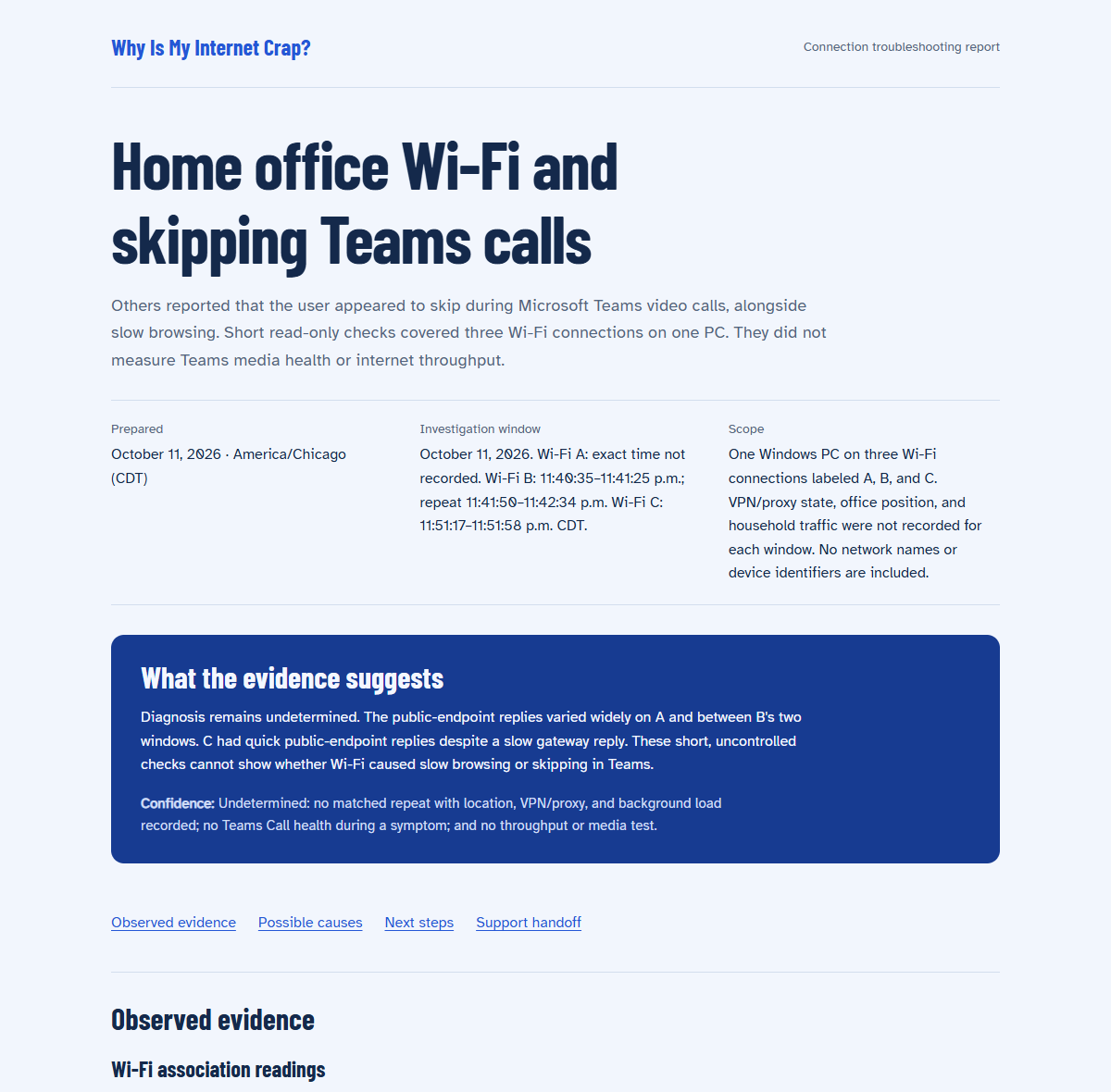
Browsing felt slow. People on Teams said the audio sounded robotic. With three Wi-Fi networks available in the same room, the owner used an AI agent and the internet-diagnostics skill to compare them on one Windows PC. Here's what it found and how calls went afterward.
The owner's later experience
This PC is in a room where Wi-Fi has been unreliable. I used an agent with the internet-diagnostics skill to compare the networks available through my AT&T gateway and separate router. The comparison helped me choose the router's 5 GHz connection. Other people on Teams calls had sometimes described my audio as robotic. I've used the selected connection for a few weeks without that problem recurring.
The later calls went better, which is encouraging. The October 11 checks still leave the cause unresolved. We also don't know which label in the report, A, B, or C, matches the connection the owner chose.
What we checked
On one Windows PC, we recorded the current Wi-Fi radio details, sent 20 ICMP echo requests to the selected gateway and 20 to 1.1.1.1, looked up www.cloudflare.com through the system DNS resolver, and tried one TCP connection to port 443. The same checks were run on the first home Wi-Fi, then two alternate Wi-Fi connections. The first alternate was repeated once.
The tests ran on October 11, 2026, in Central Time. Wi-Fi B was checked twice about a minute apart. The exact start time for Wi-Fi A was not recorded. The office position, VPN or proxy state, and household traffic were not recorded for each window. No Teams call was part of the Wi-Fi C window. Call state during A and B was not confirmed.
What we observed
| Connection | Band and radio | Signal | Reported link rate |
|---|---|---|---|
| Wi-Fi A | 5 GHz · 802.11ac | 74% | 866.7 Mbps |
| Wi-Fi B | 2.4 GHz · 802.11n | 87% | 144.4 Mbps |
| Wi-Fi C | 5 GHz · 802.11ax | 90% | 1,201 Mbps |
Signal percentages are adapter-reported readings, not universal quality grades. Link rate describes the Wi-Fi connection. It is not measured internet throughput.
| Window | Gateway ICMP | 1.1.1.1 ICMP | DNS lookup | TCP 443 |
|---|---|---|---|---|
| Wi-Fi A | 20/20 · 1 / 1.9 / 6 | 20/20 · 10 / 67.9 / 546 | Resolved · 377 ms | Connected · 51 ms |
| Wi-Fi B, first window | 19/20 · 1 / 2.6 / 15 | 16/20 · 10 / 221.6 / 950 | Resolved · 2,033 ms | Connected · 184 ms |
| Wi-Fi B, repeat | 17/20 · 1 / 117.8 / 681 | 17/20 · 10 / 14.8 / 31 | Resolved · 178 ms | Connected · 54 ms |
| Wi-Fi C | 20/20 · 1 / 16.8 / 302 | 20/20 · 11 / 11.7 / 14 | Resolved · 527 ms | Connected · 62 ms |
Reply counts are ICMP observations, not application or Teams packet-loss measurements. The repeat window's gateway replies were slow and incomplete while the public endpoint replied quickly.
What the results can tell us
Wi-Fi A's gateway answered consistently in this short window, but one public-endpoint reply took 546 ms. Wi-Fi B's first window had slower and missing public-endpoint replies plus a slower DNS lookup. In its repeat, DNS and TCP connection times were quicker, and the public-endpoint replies were much faster. B looked quite different only a minute later. Wi-Fi C's public-endpoint replies were quick, even though one gateway reply took 302 ms.
These snapshots do not establish weak Wi-Fi or identify a faulty router, access point, provider, or route. A gateway ping can be delayed without the same behavior in traffic going through it, as C's window illustrates. An alternate Wi-Fi also changes the broader network path, so it cannot isolate the radio link by itself.
We did not measure download or upload capacity, test the Teams media route, or capture Teams Call health. A successful TCP connection only confirms that one connection to port 443 worked. It does not confirm that a page loaded quickly or that real-time media was healthy.
What would narrow it down
- During an affected Teams call, use Teams Call health to note sending, receiving, and video-processing readings. That shows whether the call symptom aligns with its own network or media indicators.
- Repeat Wi-Fi A, B, and C from the same office position, on the same PC, with VPN/proxy and background traffic held steady. Repeat each short window before comparing.
- To check transfer capacity and response under upload, run the site's Full check only between calls. It transfers about 192 MB and can interrupt other real-time traffic; Lower Data uses about 3.6 MB but skips upload and relay checks.
- If Wi-Fi is still suspected, compare the same PC and workload near the access point, then over Ethernet if available. Change one condition at a time.
The most useful next reading would come from Teams Call health during a call that actually breaks up, alongside repeated comparisons under similar conditions.
Want to see the report?
Read the full session report with its observations, limits, and suggested next checks.
View the actual report